

I Built a Free PDF Compressor for the Terminal — And You Can Use It Today
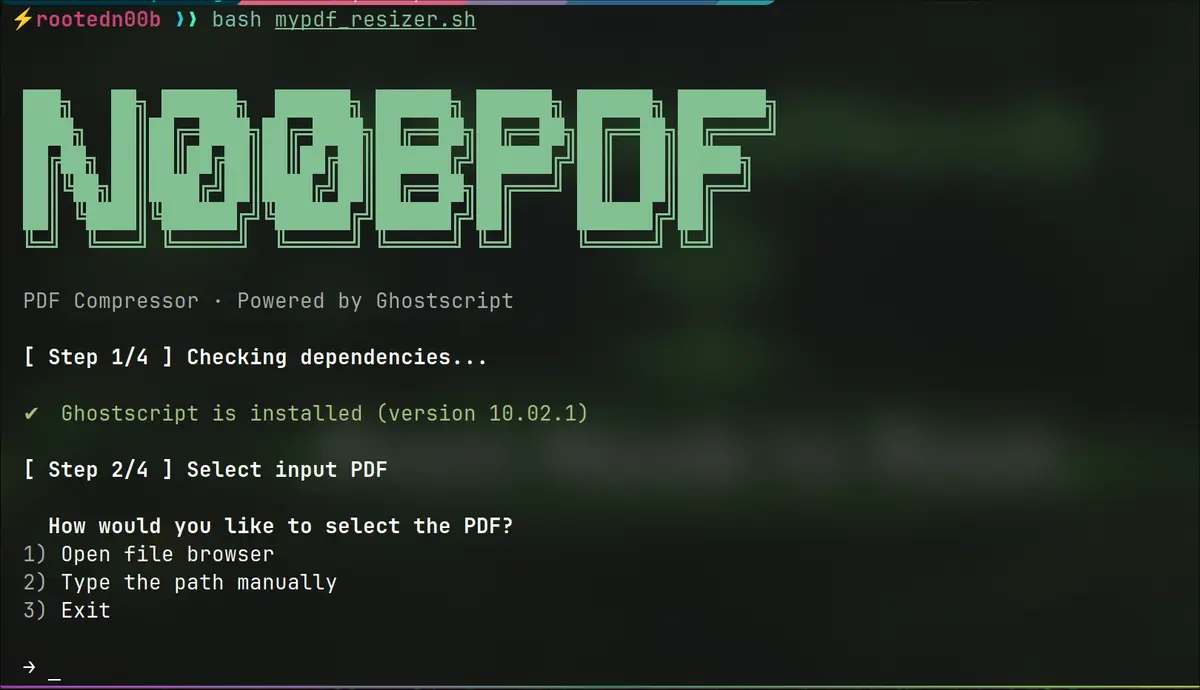
If you’ve ever tried to email a PDF only to get bounced back with a “file too large” error, you know the frustration. Online PDF compressors exist, but most of them upload your files to someone else’s server, slap a watermark on the result, or lock the good compression behind a paywall.
So I built a small Bash script that does the job locally, in your terminal, using Ghostscript — free, open-source, and already installed on most Linux systems.
Here’s everything you need to know about it, how it works, and how to use it.
The Problem With Online PDF Compressors
Before getting into the script, it’s worth talking about why a local tool is worth having.
Most web-based PDF tools work by uploading your file to a remote server, processing it there, and giving you a download link. That’s fine for a recipe you found online. It’s not so fine for a contract, a medical document, a tax return, or anything with sensitive information in it. You’re trusting a third party with your file, usually with no clear privacy policy, and often with no idea how long they keep it.
Beyond privacy, there’s the watermark problem. A lot of free online compressors add a watermark to your output unless you pay. And there’s the quality problem — many of them use aggressive compression that blurs images or makes text look muddy.
A local tool avoids all of that. Your file never leaves your machine. No watermarks. No subscription. No upload limits.
Enter Ghostscript
Ghostscript is a decades-old open-source interpreter for PostScript and PDF. It’s not glamorous, but it is the gold standard for PDF manipulation on Linux. It’s what powers a lot of the professional PDF tooling you’ve probably used without knowing it.
The core compression command looks like this:
bash
gs -sDEVICE=pdfwrite -dCompatibilityLevel=1.4 -dPDFSETTINGS=/ebook \
   -dNOPAUSE -dQUIET -dBATCH \
   -sOutputFile=output.pdf input.pdf
That single command can take a 25 MB PDF down to 4 or 5 MB with no visible quality loss for most documents. The -dPDFSETTINGS flag is the key lever — it controls the trade-off between file size and quality.
There are four presets:
| Setting | DPI | Best for |
|---|---|---|
/screen |
72 | Email, quick sharing |
/ebook |
150 | General use — the sweet spot |
/printer |
300 | Documents you’ll actually print |
/prepress |
300+ | Professional publishing workflows |
For most people, /ebook is the right choice. It cuts file size dramatically while keeping images sharp enough for reading on any screen.
What the Script Does
Typing that gs command from memory every time is annoying. You have to remember the flags, the output path, the input path. So I wrapped it in a friendly Bash script that walks you through the whole process interactively.
Here’s what happens when you run it:
Step 1 — Ghostscript Check
The script first checks whether Ghostscript is installed on your system. If it is, it shows you the version and moves on. If it isn’t, it asks whether you want to install it.
  ⚠  Ghostscript is not installed on this system.

  Would you like to install Ghostscript now? [y/N]
If you say yes, it detects your package manager automatically — apt on Debian and Ubuntu, dnf on Fedora, pacman on Arch, brew on macOS — and runs the right install command. No manual intervention needed.
Step 2 — Input File Selection
Next it asks for the PDF you want to compress. If you’re running a desktop environment with GNOME or KDE, it opens a graphical file picker. If you’re on a headless server or in a plain terminal, it falls back to a simple text prompt where you type the path.
Both ~ expansion and absolute paths work fine.
Step 3 — Quality Selection
  1) Screen   — Smallest file · 72 DPI  · Best for email & web
  2) eBook    — Balanced     · 150 DPI · Good for most uses (recommended)
  3) Printer  — High quality · 300 DPI · Suitable for printing
  4) Prepress — Max quality  · 300 DPI · Professional publishing
You pick a number. Press Enter without picking anything and it defaults to eBook — the most useful preset for everyday use.
Step 4 — Output Path
The script suggests a sensible default output name: if your input is report.pdf, the default output will be report_compressed.pdf in the same folder. You can override this with any path you like.
If the output directory doesn’t exist, the script offers to create it. If a file already exists at the output path, it asks before overwriting. No silent data loss.
The Result
After Ghostscript runs, you get a clean summary:
  ────────────────────────────────────────
  ✔  Done in 3s!
  ────────────────────────────────────────

  Original size :  24.80 MB
  Compressed    :  4.32 MB
  Saved         :  20.48 MB (82.6% smaller)
  Output file   :  /home/user/report_compressed.pdf
If the output turns out larger than the input (which can happen with already-optimized PDFs), the script warns you and suggests trying a lower quality setting.
How to Get It
The script is a single file. Download it, make it executable, and run it.
bash
# Download
curl -O https://github.com/RootedN00b/Projects/blob/main/N00bPDF/n00bpdf.sh

# Make executable
chmod +x n00bpdf.sh

# Run
./n00bpdf.sh
Or if you’d rather copy-paste the contents directly, the full source is included below.
To make it available system-wide so you can call it from anywhere:
bash
sudo mv n00bpdf.sh /usr/local/bin/n00bpd
sudo chmod +x /usr/local/bin/n00bpdf

# Then from anywhere:
n00bpdf
Real-World Results
I ran the script against a handful of different PDF types to give you a realistic picture of what to expect.
| Document type | Original | Compressed (eBook) | Reduction |
|---|---|---|---|
| Scanned invoice (image-heavy) | 24.8 MB | 4.3 MB | 82% |
| Technical report with charts | 8.2 MB | 1.9 MB | 77% |
| Text-only legal document | 1.1 MB | 0.4 MB | 64% |
| Already-optimized PDF | 0.9 MB | 1.0 MB | −11% |
The last row is worth noting. If a PDF has already been compressed — by a modern export tool for example — Ghostscript may actually make it slightly larger because it re-encodes everything from scratch. The script detects this and warns you.
What It Won’t Do
A few honest limitations:
It won’t compress encrypted PDFs. If a PDF has a password, Ghostscript can’t process it. You’ll need to remove the password first using a tool like qpdf --decrypt.
It won’t help if your PDF is already optimized. Some PDFs exported from tools like LaTeX or modern versions of Acrobat are already well-compressed. There’s not much left to squeeze out.
It won’t preserve all interactive features. If your PDF has form fields, embedded JavaScript, or complex annotations, some of these may not survive the recompression. For archival or interactive PDFs, test the output carefully before distributing it.
enjoy resizing your PDF!!!