

VoIP on Zyxel switch
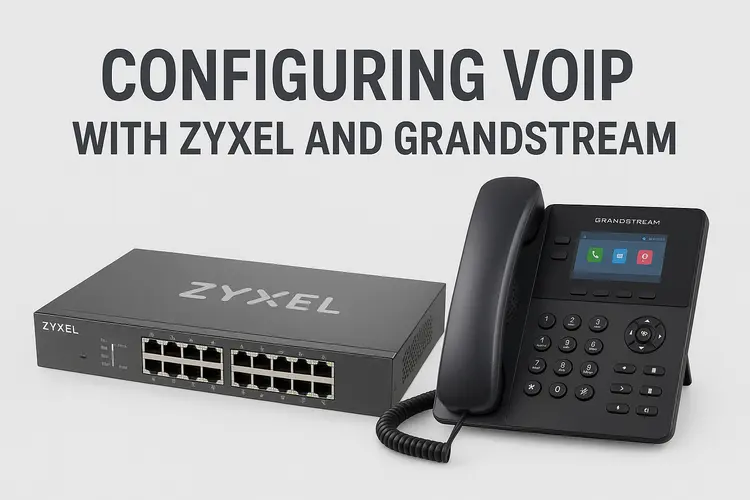
In today’s networks, Voice over IP (VoIP) has become a core communication service for both businesses and labs. To ensure call quality and reduce network interference, the best practice is to separate voice and data traffic using a Voice VLAN (Virtual Local Area Network).
In this guide, we’ll walk through the process of configuring VoIP using a Zyxel switch and Grandstream IP phones, focusing on proper VLAN segmentation and network efficiency.
🧠 Understanding the Concept
Before jumping into configuration, let’s review what we’re achieving:
- Voice VLAN: A dedicated VLAN for all VoIP traffic. This separation ensures better QoS (Quality of Service) and easier troubleshooting.
- Data VLAN: The regular network for computers, printers, and other non-voice devices.
- Auto Voice VLAN: A Zyxel feature that automatically detects and assigns IP phones to the voice VLAN based on the device’s OUI (Organizationally Unique Identifier).
This setup ensures:
- Low latency for voice traffic
- Isolated network for security
- Automatic phone provisioning with DHCP and VLAN tagging
🧰 Prerequisites
You’ll need the following:
- A Zyxel managed switch (e.g., GS1900 / XGS1930 / GS2220 series)
- Grandstream IP Phones (e.g., GXP or GRP models)
- DHCP server (can be on your router, firewall, or server)
- Configured VLANs (Data and Voice)
- Internet access or PBX/VoIP server (e.g., FreePBX, 3CX, or Grandstream UCM) – Optional for lab demo
⚙️ Step-by-Step Configuration Guide
1. Define VLANs on the Zyxel Switch
- Log in to the Zyxel switch web interface.

- Go to Switching → VLAN → VLAN Setup, click on the Add/Edit to add your vlan, make sure you have the Tx Tagging checked.Scroll down to apply the setup.

- You should have the following VLANs:
- VLAN 1 – Data VLAN
- VLAN 100 – Voice VLAN

- Set port membership:
- Trunk ports (uplinks to router/Firewall or VoIP server) → Tagged for both VLANs
- Access ports (for PCs) → Untagged in VLAN 1 (Uncheck Tx Tagging to untagged port)
- Phone ports → Tagged in VLAN 100, like they are in the above picture.
2. Enable the Voice VLAN Feature
- Navigate to Switching → VLAN → Voice VLAN Setup.
- Enable Voice VLAN.
- Set VLAN ID = 100 (In my case). Then apply the configuration

- Enable OUI Detection in Voice VLAN OUI Setup and add Grandstream’s OUI prefixes, e.g.:
000B82000B83000B84

At this point your phone is ready to be detected on the network and get assigned an IP via the OUI, but not ready to communicate.
Test ping from the router / Firewall will be failed because the Frame doesn’t have any VLAN ID to get.
3. Configure Port Settings for Phones
- Go to Port → LLDP → LLDP-MED.
- click on the LLDP-MED Network Policy to add the ports where your phones are connected, click on Add/Edit
- Assign the ports connected to phones as Voice VLAN ports.
- Add the Voice VLAN for Auto Assignment on that port.
- If your phones is daisy-chained (PC connected to the phone’s PC port):
- Configure the service as voice.
- Set the Tag to Tagged
- DSCP (Differentiated Service Code Point) useful for better quality of service
- Set the QoS (802.1q priority) to 6 or 7 for high priority voice traffic. (higher priority better performance)
- Apply the configuration.

Click on the LLDP-MED Setup in the same page check the Network Policy option for all of the port where you have connected phones

If the policy checkbox is uncheck the frame of from the phone won’t get tagged with the VLAN ID 100
Wireshark ARP frame before Network Policy checked

Wireshark ARP frame after enabling Network Policy checked

4. DHCP Options for Voice VLAN
Ensure your DHCP server has a scope for the Voice VLAN (VLAN 100).
- Assign a different subnet (e.g., 192.168.100.0/24).
- Add Option 66 or 160 if using auto-provisioning for Grandstream phones (e.g., pointing to your PBX or provisioning server).
5. Configure GrandStream Phone VLAN Settings
By default, GrandStream phones can receive VLAN info via LLDP-MED or DHCP Option 132.
If you need to configure manually:
- Access the phone web GUI.
- Navigate to Network → Basic Settings → Ethernet.
- Set Layer 2 QoS 802.1p Priority to
6and VLAN Tag to100. - Save and reboot the phone.
Once rebooted, the phone should receive its IP address from the Voice VLAN DHCP scope and register with the PBX or your Provisioning server .
NB: What is LLDP ?
LLDP (Link Layer Discovery Protocol) is an open standard Layer 2 protocol (IEEE 802.1AB) used by network devices (switches, routers, wireless access points, IP phones, etc.) to advertise and discover information about each other directly connected on the same local network segment.
There is an other protocol that can achieve the same thing thing named CDP which is a Cisco proprietory not all vendor use it.
📞 Testing & Verification
- Verify the phone’s IP address — it should be in the Voice VLAN subnet, and must recieve ping packet from the router / firewall
- Ping between your PBX and the phone.
- Make a test call and check call quality.
- On the Zyxel switch, you can verify with:
- Monitoring → VLAN Port Status
- LLDP Neighbor Table (to confirm detection of Grandstream phones)
🧩 Troubleshooting Tips
| Issue | Possible Cause | Solution |
| Phone can’t gets IP from Data VLAN | Voice VLAN OUI not detected | Manually set VLAN ID or check LLDP |
| No IP assigned | DHCP not available on VLAN 100 | Verify DHCP scope for Voice VLAN |
| Call quality poor | QoS not configured | Set priority 6 or 7 in switch QoS settings |
💡 Best Practices
- Keep Voice VLAN isolated from Data VLAN for better performance.
- Use LLDP-MED for automatic VLAN assignment.
- Monitor switch port utilization for any packet drops.
- Always update switch and phone firmware to latest stable versions.
🧱 Conclusion
Implementing a Voice VLAN on a Zyxel switch with Grandstream IP phones is a simple yet powerful way to optimize your VoIP network. With proper VLAN segmentation, QoS prioritization, and device auto-detection, your voice calls will be clear, stable, and secure — exactly what a professional communication system should deliver.